

The Account page is where you manage everything tied to your personal identity on Observare — profile, password, two-factor authentication, and the account itself. It sits as its own top-level item in the sidebar, separate from Subscription (which handles billing and plan usage).
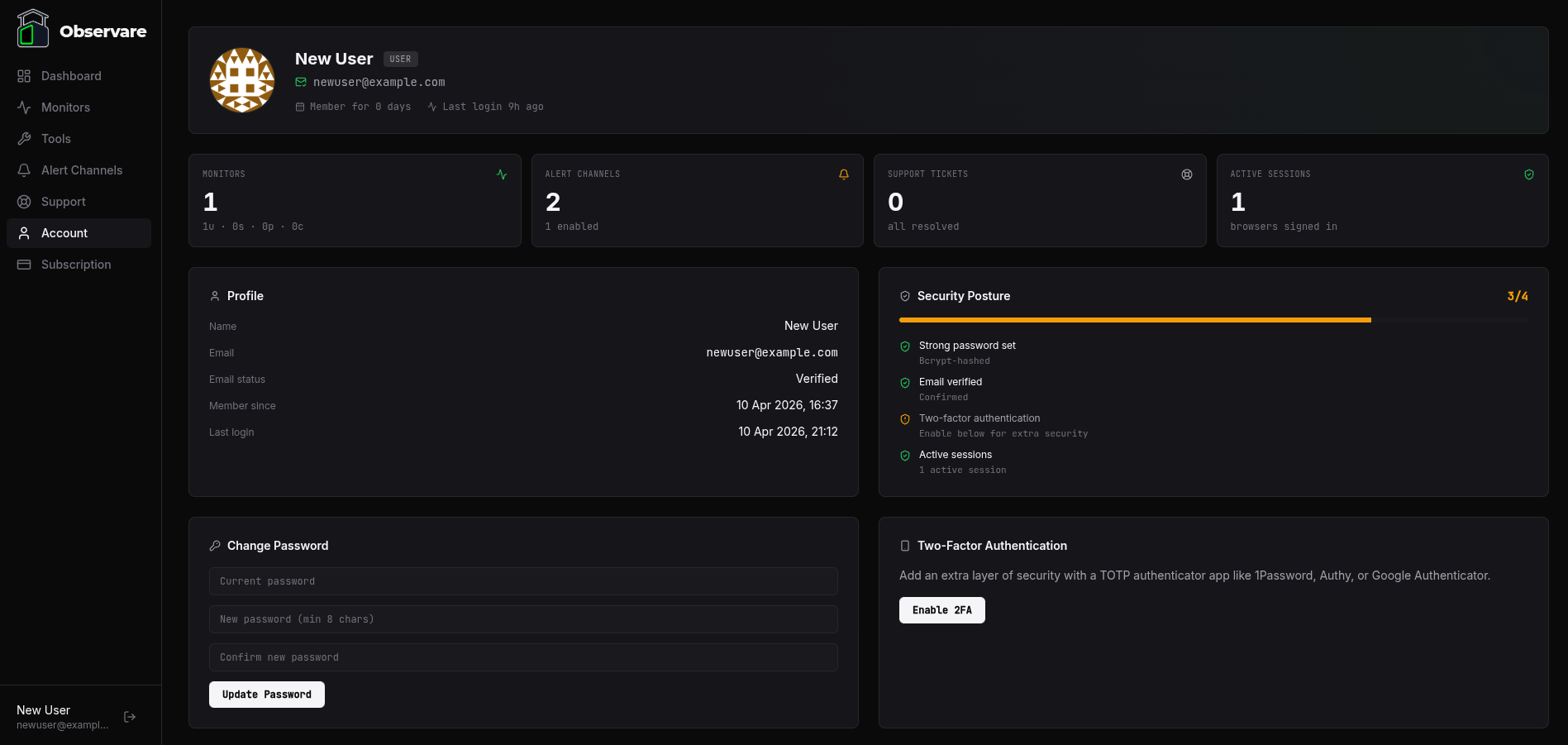
Identity hero
The banner at the top of the page pulls everything together in one block:
- Avatar — fetched from Gravatar using the SHA-256 hash of your lowercased email address. If you haven't set up a Gravatar against that email, you'll get an auto-generated identicon so the hero never looks empty.
- Name — the display name you set at signup. If you never set one, the hero shows "Unnamed user" as a placeholder until you update the profile.
- Role badge — either
useroradmin. Admin accounts also get a small gold crown icon on the avatar as a visual indicator. - Email — your account email. If you've verified it by clicking the link in the confirmation email, it shows with a green tick. If not, it shows with an amber icon and an
(unverified)label. - Member for N days — a live counter showing how long you've had the account, computed from the
created_attimestamp. - Last login — a relative timestamp (
5m ago,2h ago,3 days ago, etc.). Hover it to see the full date and time.
Quick stats
Below the hero is a four-card strip with animated count-up numbers summarising your activity on the account:
| Card | What it shows |
|---|---|
| Monitors | Total monitors across all types, with a breakdown underneath: 3u · 2s · 1p · 4c (uptime / SSL / port / cron). |
| Alert Channels | Total channels you've configured, with {enabled} enabled underneath showing how many are currently turned on. |
| Support Tickets | Total tickets you've opened. Shows "{N} open" if any are still open, or "all resolved" otherwise. |
| Active Sessions | How many browser sessions are currently signed into this account. This is a count only — there's no per-session revoke list (yet). |
These numbers give you a one-glance view of what's tied to the account without having to click into each page.
Profile
The left-hand card under the KPI strip shows your profile details:
- Name — your display name
- Email — in monospace so the full address is readable
- Email status — Verified (green) or Unverified (amber)
- Member since — exact date you signed up
- Last login — exact date and time of your most recent login
Profile editing isn't wired to this card directly today — it's a read-only summary. Name changes happen via the password-change / 2FA flows' existing forms, and email changes aren't supported yet (if you need a new email address, delete the account and sign up again).
Security posture
The right-hand card is a live security score out of 4, with a progress bar that turns green at 4/4, amber at 3/4, and red below that. The four checks are:
- Strong password set — always true. Observare hashes all passwords with bcrypt at signup.
- Email verified — ticks green once you've clicked the link in the confirmation email Observare sent at signup.
- Two-factor authentication — ticks green once you've set up TOTP (see the next section).
- Active sessions — ticks green if you have 3 or fewer browser sessions signed in. More than that probably means you've forgotten to sign out of a device.
Each item shows a short hint underneath explaining what you need to do to tick it (e.g. "Click the link in your confirmation email" for an unverified email).
Changing your password
The Change Password section below the two cards is a simple three-field form:
- Current password — required, verifies you're the account holder
- New password — minimum 8 characters, maximum 128
- Confirm new password — must match
On submit, Observare verifies your current password with bcrypt, hashes the new one, and writes it to the user row. Your current session stays signed in, but every other session on the account is immediately invalidated — so if somebody else had their browser signed in, they're kicked out the moment you change the password.
Passwords are bcrypt-hashed with 12 salt rounds. Observare never stores or logs the plaintext, and the hash is never included in any API response.
Two-factor authentication (2FA)
2FA uses TOTP (time-based one-time passwords) — the same standard used by Authy, 1Password, Google Authenticator, and every other authenticator app.
Setting it up
If 2FA is disabled, the card shows a single Enable 2FA button. Clicking it:
- Generates a fresh TOTP secret on the server
- Stores the secret against your account (but keeps
totp_enabled = 0until you verify) - Returns a QR code and a human-readable manual key
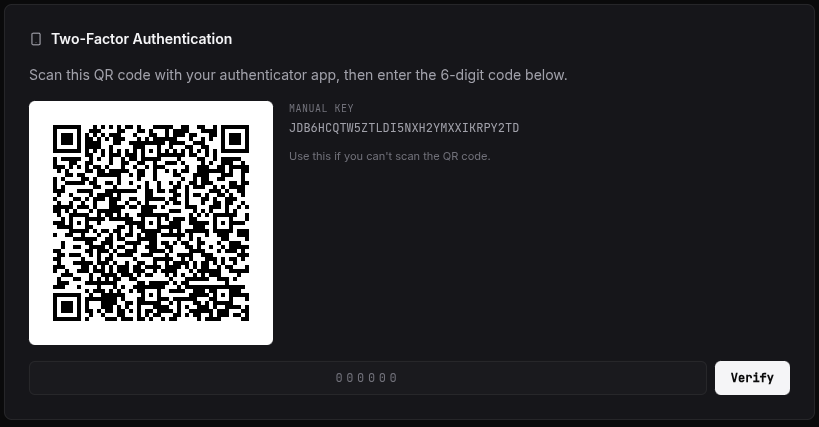
Scan the QR code with your authenticator app. If you can't scan (e.g. the dashboard is already on your phone), copy the manual key into the app instead. The app will immediately start showing a rolling 6-digit code that changes every 30 seconds.
Enter the current 6-digit code into the box below the QR and click Verify. Observare checks it with a ±1 window (so codes from the previous, current, or next 30-second slot all count — this absorbs small clock drift between your phone and the server). If it matches, totp_enabled flips to true and the next login will require a code.
Disabling it
When 2FA is enabled the card shows a "Disable" form that asks for a current 6-digit code. This is the only way to turn it off from the dashboard — you can't disable 2FA just by knowing the password. Enter a valid code, click Disable, and the TOTP secret is wiped from your account.
Danger Zone — deleting your account
At the bottom of the Account page, clearly marked with a red border, is the Danger Zone. Click Delete Account and you'll be asked to re-enter your password as a final confirmation.
On confirmation:
- Your password is verified one last time
- The
usersrow is deleted - SQLite foreign-key cascades then wipe every piece of account data: sessions, email verification tokens, all monitors (uptime, SSL, port, cron), alert channels, webhook endpoints and their stored events, support tickets, ping logs, check history, SMS log entries — everything.
- Your session cookie is cleared and you're logged out.
What isn't here (yet)
A few things people sometimes expect on an account page that Observare doesn't have:
- Profile picture upload — none. Avatars come from Gravatar, which is automatic based on your email.
- Per-session revoke list — the Active Sessions card shows a count, but there's no page listing individual sessions with "sign out" buttons. Changing your password invalidates all other sessions as a bulk alternative.
- Email address change — not supported. If you need a new email, delete the account and sign up again.
- API tokens / personal access tokens — Observare doesn't have a public API yet, so there's no token management surface to speak of.
- Notification preferences — alerts are controlled per-monitor via the Alert Channels you assign, not via any global account-level preference.
Most of these are on the roadmap but not built yet. If one of them would materially change how you use Observare, mention it via the Support section in the sidebar — what customers actually ask for is what shapes the build order.
What's next
- Subscription — your plan, trial status, usage against caps, and billing.
- Setting up alert channels — configure where your alerts land.