
Monitors only matter if the alerts reach you. Observare supports multiple alert channels, and each monitor can send to any combination of them. This page covers how to connect each channel and how to test that alerts are actually firing.
Where alert channels live
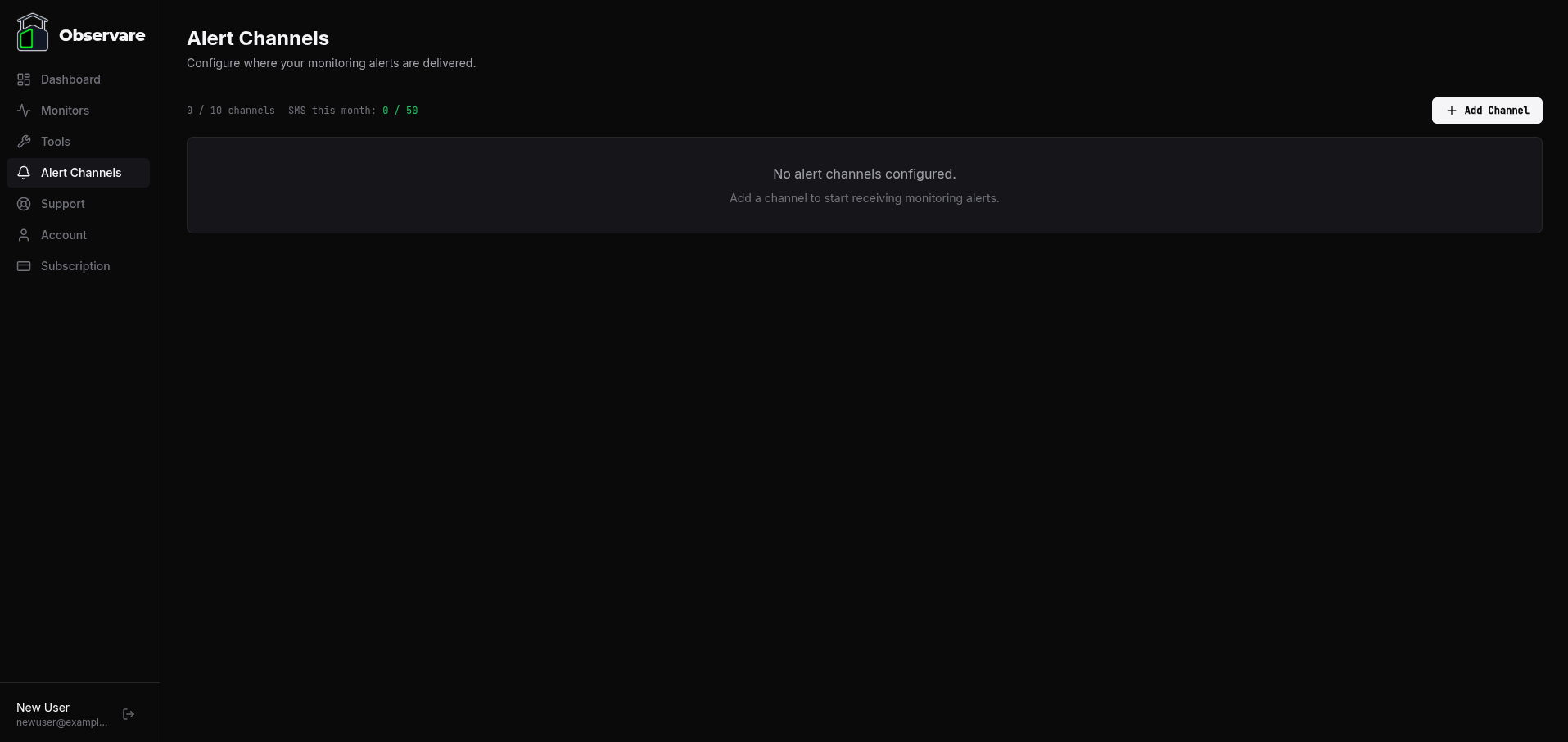
Alert channels are account-wide, not per-monitor. You configure them once under Alert Channels in the sidebar, and then each monitor references the channels it should notify.
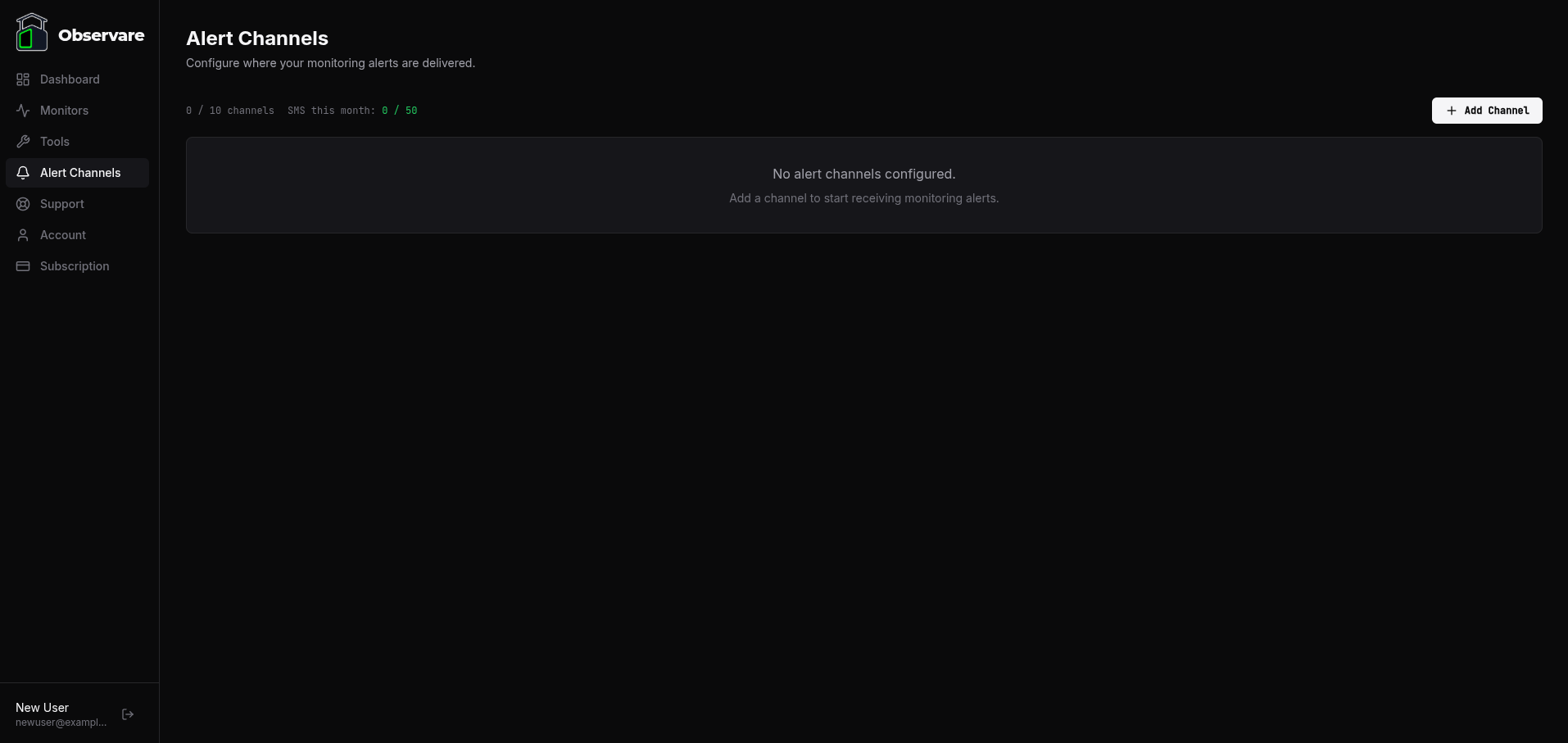
Nothing is configured by default — even email. You need to add at least one alert channel before your monitors can actually reach you.
What's available today
Five channels are live:
- Email — alerts sent to any email address you configure (verified via 6-digit code).
- SMS — text messages sent to a verified phone number (50/month included).
- Slack — alerts posted to a Slack channel via an incoming webhook. Colour-coded by severity.
- Discord — alerts posted to a Discord channel via a webhook. Colour-coded embeds with monitor and event details.
- Webhook — a JSON POST to any public URL you control. Supports optional HMAC-SHA256 signing for authenticity verification. Works with PagerDuty, Opsgenie, n8n, Zapier, or your own alert pipeline.
Go to Alert Channels → Add channel.
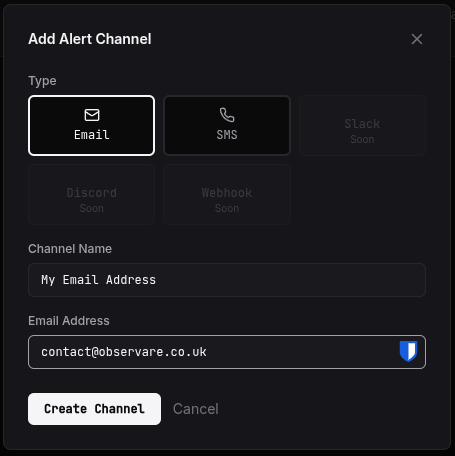
Pick Email. Enter a Channel Name to label this channel — something like My Personal Email or Ops Team Inbox — then enter the Email Address you want alerts sent to. The address does not have to be your account email; you can point alerts at a shared inbox, a team alias, or a different personal address.
Once you've saved the channel you'll be taken back to the Alert Channels page and an email will be sent to the address you entered, asking you to click a link to confirm you have access to that inbox. The channel stays unverified (and won't receive alerts) until that link is clicked — this prevents anyone adding a stranger's inbox to a noisy monitor.
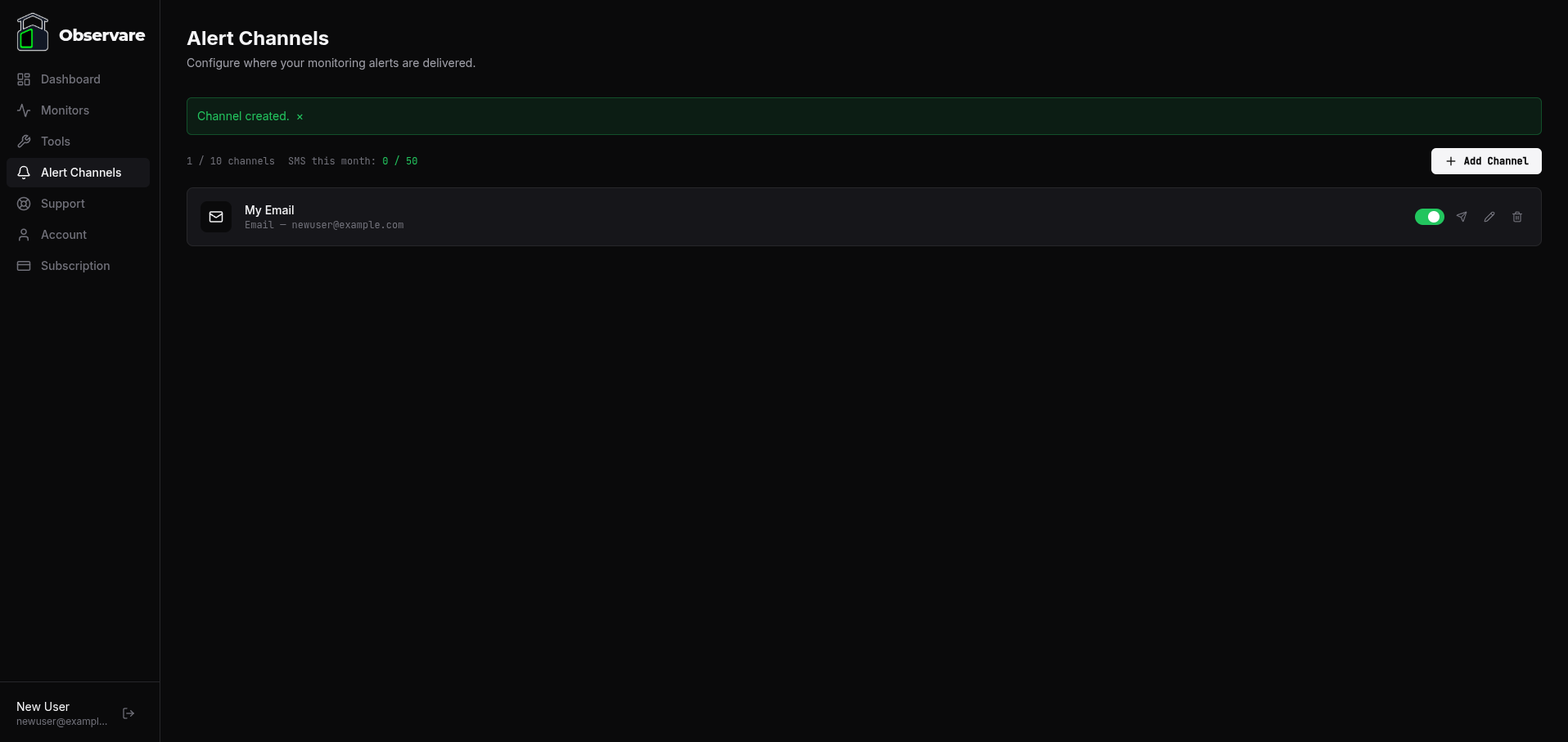
Add as many addresses as you like; each one is its own channel that you can assign to monitors independently.
SMS
SMS alerts are available on all plans and use Observare's built-in messaging provider — you don't need a Twilio or Vonage account.
To set it up, go to Alert Channels → Add channel.
Pick SMS. Enter a Channel Name to label this channel — something like My Mobile or On-call Phone — then enter the Phone Number you want alerts sent to.
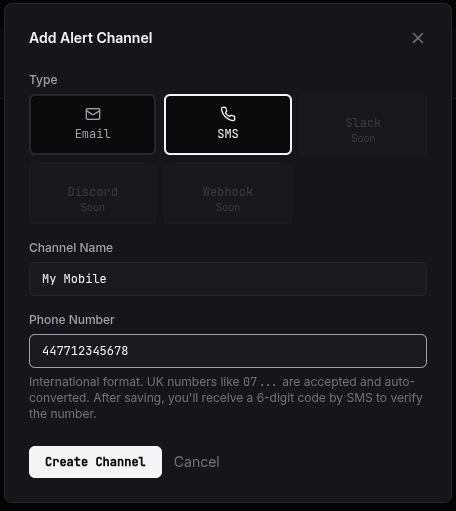
Click Create Channel and you'll see a small window asking you to verify your mobile number. Click Send Verification Code and you'll get a short code by text; enter it back into the window to confirm the number is yours.
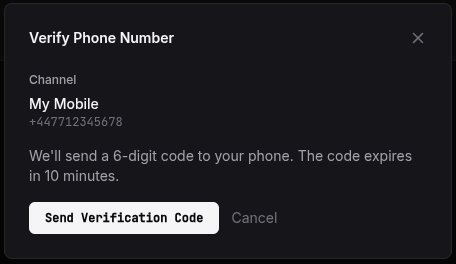
Each account includes 50 SMS alerts per month.
Slack
Slack alerts land directly in a channel of your choice via an Incoming Webhook. Each alert arrives as a colour-coded message — red for down/failed, amber for flapping/expiry, green for recovery — with the monitor name, event type, and a short summary.
Setting up a Slack incoming webhook
- In your Slack workspace, go to Apps → Incoming WebHooks (or visit
https://<your-workspace>.slack.com/apps/A0F7XDUAZ-incoming-webhooks). - Click Add to Slack, pick the channel you want alerts in (e.g.
#ops-alerts), and click Add Incoming WebHooks integration. - Copy the Webhook URL — it looks like
https://hooks.slack.com/services/T.../B.../....
Adding it to Observare
Go to Alert Channels → Add channel. Pick Slack. Enter a Channel Name (e.g. #ops-alerts) and paste the Slack Webhook URL you copied above.
Slack channels are enabled immediately on creation — no verification step. Assign it to any monitor the same way you'd assign email or SMS.
#ops-critical and your SSL expiry warnings at #ops-info so critical alerts don't get buried in noise.
Discord
Discord alerts arrive as colour-coded embeds in the channel of your choice — red for down/failed, amber for flapping/expiry, green for recovery — with a footer showing the monitor name and event type.
Setting up a Discord webhook
- In your Discord server, click the server name at the top → Server Settings.
- Go to Integrations → Webhooks → New Webhook.
- Pick the channel you want alerts in (e.g.
#server-status), give the webhook a name (e.g.Observare). - Click Copy Webhook URL — it looks like
https://discord.com/api/webhooks/....
Adding it to Observare
Go to Alert Channels → Add channel. Pick Discord. Enter a Channel Name (e.g. #server-status) and paste the Discord Webhook URL you copied above.
Discord channels are enabled immediately — no verification step. Assign it to any monitor the same way you'd assign email or SMS.
Webhook
Webhook channels POST a JSON payload to a URL you control every time an alert fires. This is the most flexible channel type — it works with any service that can receive an HTTP POST, including PagerDuty, Opsgenie, n8n, Zapier, Make, or a custom endpoint in your own infrastructure.
Go to Alert Channels → Add channel. Pick Webhook. Enter a Channel Name (e.g. PagerDuty or Ops Pipeline) and the Webhook URL — this must be a public HTTPS address. Private, loopback, and cloud metadata IPs are blocked for security.
Optionally set a Signing Secret. If set, every request includes an X-Observare-Signature header containing sha256=<hex> — an HMAC-SHA256 of the raw JSON body signed with your secret. Your receiver can verify authenticity the same way Stripe webhook signatures work: recompute the HMAC of the raw request body with the shared secret and compare.
Webhook channels are enabled immediately on creation — no verification step needed (unlike SMS).
Payload format
Every webhook alert is a JSON POST with this shape:
{
  "event":        "monitor.down",
  "timestamp":    "2026-04-12T14:30:00.000Z",
  "monitor_name": "My Website",
  "monitor_type": "uptime",
  "subject":      "[DOWN] My Website — Observare",
  "message":      "[Observare] DOWN: My Website. timeout. https://example.com",
  "details": {
    "url":           "https://example.com",
    "error_type":    "timeout",
    "error_message": "Request timed out after 30s",
    "started_at":    "2026-04-12T14:29:30.000Z"
  }
}
The event field tells you what happened. Possible values:
| Event | Monitor type | When it fires |
|---|---|---|
monitor.down |
uptime | Confirmed down after 30s recheck |
monitor.recovered |
uptime | Back online after an incident |
monitor.flapping |
uptime | Repeatedly going up and down |
port.down |
port | TCP/UDP connection failed after recheck |
port.recovered |
port | Port reachable again |
port.flapping |
port | Port repeatedly failing/recovering |
ssl.expiry |
ssl | Certificate nearing expiry threshold |
ssl.invalid |
ssl | Certificate check failed (expired, chain broken) |
ssl.renewed |
ssl | Certificate is valid again after being invalid |
heartbeat.missed |
cron | Expected ping didn't arrive within grace period |
heartbeat.failed |
cron | Job explicitly pinged the /fail endpoint |
heartbeat.recovered |
cron | First successful ping after a miss/failure |
heartbeat.flapping |
cron | Repeatedly missing or failing |
webhook.signature_failure |
webhook logger | Stripe webhook signature verification failed |
The details object varies per event type — recovery events include downtime_seconds, SSL events include days_remaining and issuer, port events include hostname/port/protocol, and so on. Your receiver should read event first and then parse details accordingly.
message field is a short human-readable summary suitable for forwarding to a chat channel or pager as-is.
Assigning channels to monitors
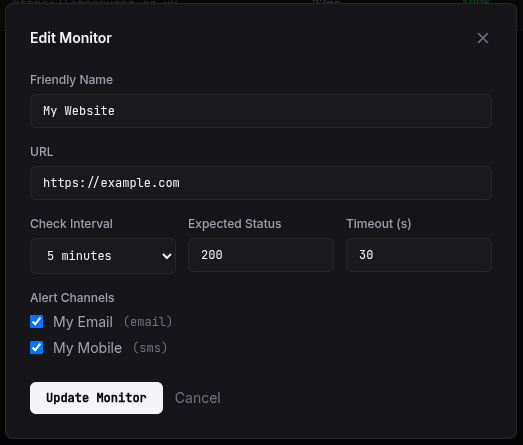
Go back to the Monitors section in the sidebar and click the type of monitor you've already configured (Uptime, SSL, Port, or Cron). Find your monitor in the list and click its Edit button. From there you can assign any combination of alert channels to that monitor — Email only, SMS only, or both.
Checking a channel is working
The quickest way to confirm a channel is wired up correctly is to send a test alert through it. On the Alert Channels page each channel has a small paper-plane icon in its row — click it and Observare sends a real test message through that channel:
- Email channels get a "Test Alert" email delivered to the configured address.
- SMS channels get a "This is a test alert" SMS delivered to the configured phone number. The SMS channel must be verified first — unverified numbers will refuse the test with an error.
- Slack channels get a colour-coded test message posted to the configured Slack channel. Check the channel in Slack to confirm it arrived.
- Discord channels get a colour-coded embed posted to the configured Discord channel. Check the channel in Discord to confirm it arrived.
- Webhook channels get a
[TEST]JSON POST to the configured URL. Check your endpoint's logs to confirm it arrived. If you set a signing secret, the test includes theX-Observare-Signatureheader so you can verify your signature-checking code works too.
If the test arrives, the channel is configured correctly and the only thing left is to make sure the channel is actually assigned to the monitors you want it to cover. If the test doesn't arrive, the channel itself has a problem — double-check the address or phone number, re-verify if needed, and open a Support ticket if you're still stuck.
What's next
- FAQ & troubleshooting — common alert delivery problems and fixes.
- Uptime monitoring — hook your first live monitor up to the alerts.