

Process monitors can only be created from a host where the Linux agent is installed and authenticated. This page covers the CLI flow for adding them, what each prompt expects, and how to verify the new monitor is live. For day-to-day management of process monitors in the web UI — editing names, changing intervals, pausing, deleting, wiring up alerts — see process monitoring in the Monitoring section.
Why not the web UI?
A process check has to run on the same host as the process it's watching. There's no way to do that from Observare's cloud workers — they have no route into your network, and even if they did they'd be reading /proc on the wrong machine. The agent fills that gap: it's a small Go binary that runs on the host, walks /proc locally, and submits the results back to Observare.
That's why creation lives on the CLI. You have to be on the host, logged in as a user the agent can run as, to know that the process name you're typing actually corresponds to something that exists in /proc on this specific machine.
Prerequisites
- A Linux host running the process you want to watch.
- The Observare agent installed and authenticated on that host — see installing the agent if you haven't done that yet.
- The agent either running as a systemd service (
sudo observare install) or in the foreground for testing (observare run). Creation doesn't strictly require the daemon to be running, but nothing will actually be checked until it is.
Finding the right process name
Process monitors match on /proc/<pid>/comm, which is the kernel-recorded task name — not the full command line. Linux caps this at 15 characters (the TASK_COMM_LEN - 1 limit).
Before you create the monitor, confirm what the kernel sees:
ps -eo pid,comm | grep -i <your-process>Common surprises:
- A Python script called
queue_worker.pyshows up aspython3— notqueue_worker. The kernel sees the interpreter, not the script. - A Go binary called
my-long-service-namegets truncated tomy-long-serviceat 15 characters. - A systemd service whose unit name is
api-worker.servicestill runs as whatever the binary's ownargv[0]sets — check withps, not systemd.
If the name you want is 16+ characters, you have two options: either rename the binary before you package it, or use a process monitor against the 15-character truncation and accept that multiple binaries with the same prefix would match.
Creating the monitor
On the host, run:
observare configPick option 3 — Add process monitor. The agent walks you through three prompts:
Add process monitor

  Watches /proc on this host for a process whose comm name matches
  exactly. Names are limited to 15 characters (Linux TASK_COMM_LEN).
  Success = at least one matching process is running. Failure = zero.

  Friendly name (e.g. 'nginx frontend'): nginx worker
  Process name (must match /proc/*/comm exactly, max 15 chars): nginx
  Check interval:
    1) 5 minutes
    2) 10 minutes
    3) 15 minutes
  > 1
After the interval, the agent fetches your alert channels and asks which should be attached:
  Alert channels (comma-separated numbers, blank for none):
    1) Ops email (email)
    2) On-call SMS (sms)
    3) Incident Slack (slack)
  > 1,3

Creating monitor…
✓ Created process monitor "nginx worker" (pm_abc123…)
The monitor is now live on the server and the agent picks it up on its next config-pull (within 30 seconds). First check result lands a few seconds after that.
Prompt-by-prompt reference
- Friendly name — shown everywhere in the web UI (list page, detail page, alert subject lines). 1–100 characters. Pick something that's obviously this specific process on this specific host.
- Process name — the exact
/proc/<pid>/commvalue. Case-sensitive. Max 15 characters. No wildcards, no patterns — exact equality only. - Check interval — 5, 10, or 15 minutes. Same set on every monitor type, plan-independent.
- Alert channels — any alert channel you've configured in the web UI is listed. Comma-separate the numbers for multiple selections, or leave blank if you don't want any alerts from this monitor. You can change the selection later from the web UI without touching the CLI.
Verifying the monitor is live
Three ways to check, in increasing order of effort:
From the CLI on the same host. The list command prints every monitor this agent owns, grouped by type:
observare listYou should see your new monitor under the Process: heading with its interval and current status. Immediately after creation the status is pending until the first check runs.
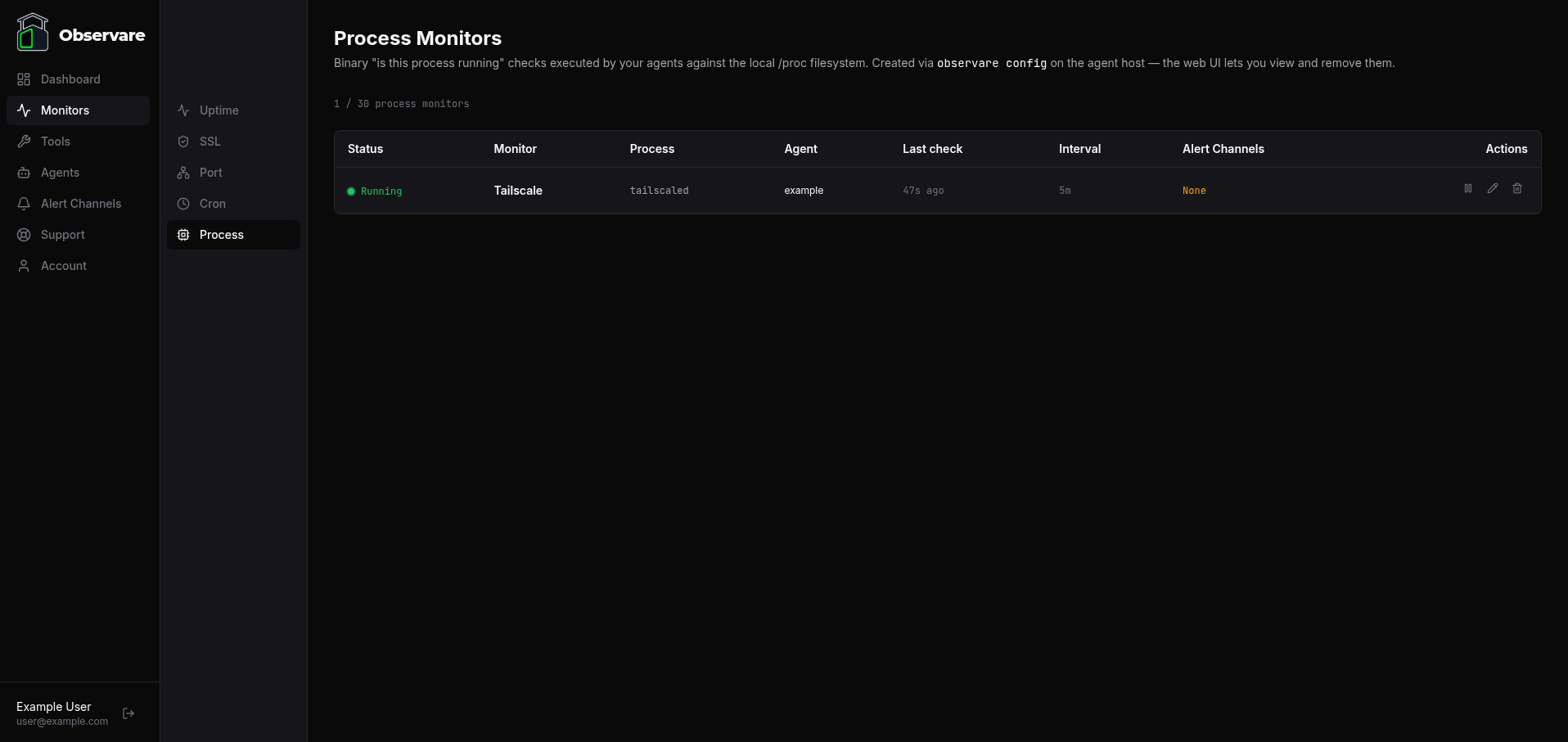
From the web UI. Go to Monitors → Process. The new row is there at the top (sorted by creation date, newest first). Click in for the detail page.
From the agent's log. If you're running as a foreground process, check the stdout; if you installed as a systemd service, check the journal:
journalctl -u observare-agent -fYou'll see a [config] line reporting the new monitor count and a [check] process … line the first time the check actually runs.
Removing a monitor from the CLI
Same observare config menu, option 6 — Remove a monitor. Pick the monitor by the number next to it. You'll get a y/N confirmation before the delete fires.
The one-shot equivalent, if you already know the monitor ID:
observare remove <monitor-id>Deletion also works from the web UI — the trash icon on the process monitor list page or the detail page does exactly the same thing.
Troubleshooting
"process name is required" when you typed one
The trimming on the prompt is whitespace-only. A name that was entirely whitespace-stripped to empty still triggers the error. Retype without leading or trailing whitespace.
"process name is 18 chars, max 15"
The 15-character kernel limit. See "Finding the right process name" above for how to check what the kernel is actually recording.
The monitor sits at pending for more than a few minutes after creation
Usually one of:
- The agent's daemon isn't running. Check with
systemctl is-active observare-agent— if it'sinactiveyou'll needsudo observare install(orsudo systemctl start observare-agentif it was installed before). - The agent can't reach
observare.io. Outbound HTTPS toobservare.io:443is required. The journal log will report the connection error on every report tick. - You ran
observare configon a different host than the one the agent is running on. The CLI pairs with whichever agent has a config file at~/.observare/config.json— if you've got multiple agents and you're on the wrong one, the monitor is created and assigned to a different host entirely.
Alert channels list is empty
The agent fetches alert channels from the server on each config pull. If the list is empty, you haven't set up any alert channels yet — go to Alert Channels in the web UI and add one, then re-run observare config.
What's next
- Process monitoring — web-UI management for these monitors: list page, detail page, edit, pause, alerts, delete.
- Docker monitoring from the agent — the same CLI flow for adding Docker container monitors.
- Internal uptime & port checks — for monitors against HTTP endpoints or TCP ports inside your network.