
The Support section is how you get help from a human when the docs haven't answered your question. Every Observare account has access to support — there's no paid support tier, no separate billing for tickets, no "starter vs pro" cap on how many tickets you can open. Click Support in the sidebar and you're there.
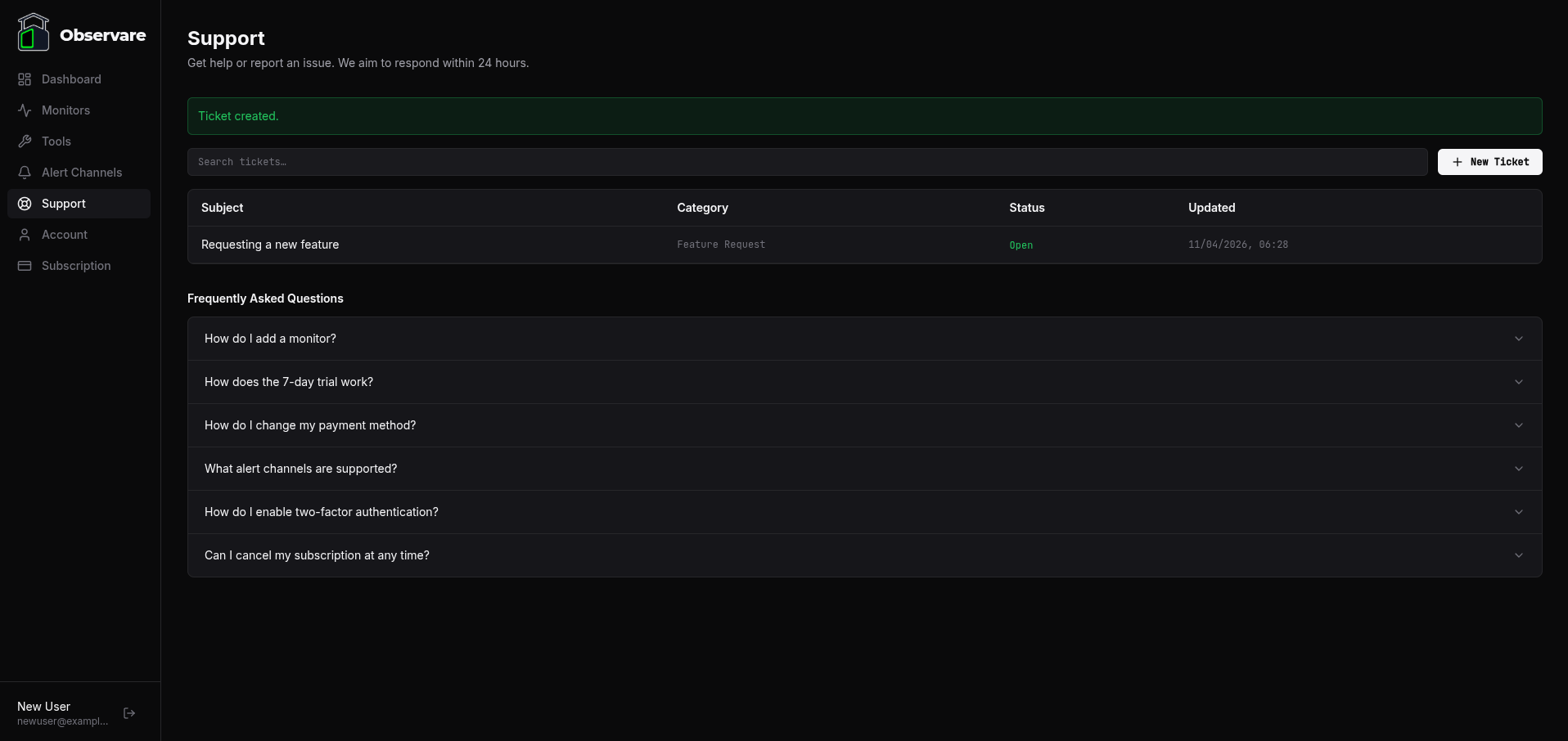
What the page shows
The Support page has three main sections stacked top to bottom:
- A search box for finding tickets by subject
- Your ticket list — a table of every ticket you've ever opened
- A frequently-asked-questions accordion with quick answers to the six most common questions
The tagline at the top of the page says "Get help or report an issue. We aim to respond within 24 hours." That 24-hour target is the current response-time expectation — not a contractual SLA, just what we aim for.
Opening a ticket
Click New Ticket at the top right of the page. A modal pops up with three fields:
- Category — pick one of six:
- General — anything that doesn't fit the other categories
- Billing — questions about charges, invoices, refunds, cancellation, or card updates
- Technical — something not working or behaving unexpectedly
- Account — login problems, email verification, 2FA, password reset issues
- Feature Request — something you'd like Observare to do that it doesn't today
- Bug Report — something Observare is doing wrong that it shouldn't be
- Subject — a short description of the issue. 1–200 characters. Keep it specific: "Uptime monitor for api.example.com alerted twice in 10 minutes" is much better than "help".
- Message — the full description. 1–5000 characters. Include as much context as you have — monitor ID, error message, what you expected vs what happened, rough time of occurrence. The more you put in the first message, the fewer back-and-forth replies it'll take to resolve.
Click Submit Ticket. The modal closes, a confirmation appears, and your new ticket shows up at the top of the list with status Open.
The ticket list
Your ticket list table has these columns:
| Column | What it shows |
|---|---|
| Subject | The ticket subject. If the ticket has an unread admin reply, a small green dot appears next to the subject. |
| Category | The category you picked when creating the ticket, humanised (bug-report → bug report). |
| Status | Current ticket status (see below). |
| Updated | When the ticket was last touched (created, replied to, or status changed) in DD/MM/YYYY HH:MM format. |
The list is sorted by last updated, most recent first. Any ticket with a new admin reply that you haven't read yet floats to the top and gets the green dot next to its subject.
Searching: type into the search box above the list to filter by subject. The filter runs instantly as you type. There's no regex or complex query syntax — just a case-insensitive substring match.
Clicking any row opens the ticket detail page.
Inside a ticket
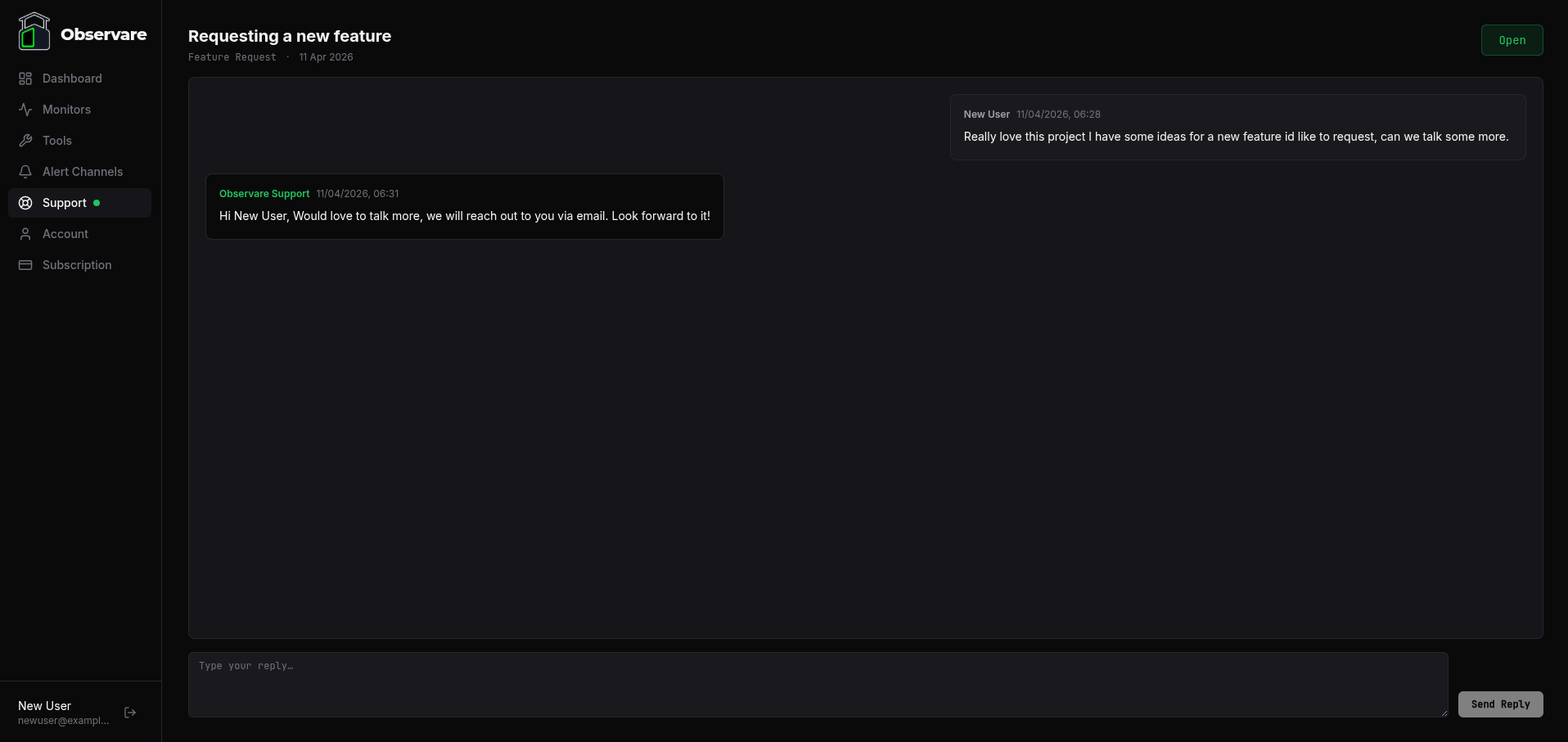
The ticket detail page is laid out as a conversation thread, like a chat:
- Header — the ticket subject, category, creation date, and current status pill
- Thread — every reply so far, oldest at the top, newest at the bottom
- Reply box — a text area and a Send Reply button at the bottom (only shown if the ticket isn't closed)
Your messages appear on the right in a grey bubble. Replies from Observare Support appear on the left in a slightly darker bubble with the sender label in green. Each reply is timestamped.
The thread auto-scrolls to the most recent message as soon as it loads, so you don't have to hunt for the latest reply on a long ticket.
Replying
Type your reply in the box at the bottom and click Send Reply (or press Ctrl+Enter / Cmd+Enter on Mac). The reply is added to the thread immediately and the ticket's "Updated" timestamp is bumped.
Replies have the same 1–5000 character limit as the initial message. There's no file attachment support — for screenshots or logs, paste them as text (for logs) or put the image somewhere publicly reachable (imgur, your own server) and link it.
Read tracking
Observare tracks which replies you've seen. When you open a ticket, any admin replies you hadn't read are marked as read automatically. The green dot on the ticket list and the small green badge on the Support item in the sidebar both disappear once you've seen the new reply.
The unread badge in the sidebar polls every 30 seconds, so a reply landing while you have the app open will show up without a manual refresh.
Status lifecycle
A ticket's status is one of four values. Only admins can change the status — users can't close or reopen their own tickets from the UI, though they can ask for it in the conversation.
| Status | Meaning |
|---|---|
| Open (green) | Fresh ticket, or a ticket where the most recent action is a user reply waiting for an admin response. |
| In progress (amber) | Admin is actively working on it. Sometimes set for tickets that need investigation before a full reply can land. |
| Resolved (grey) | Admin believes the issue is sorted. The reply box is still available, so you can come back and say "actually no" if it wasn't. |
| Closed (grey) | Ticket is finished and the reply box is hidden. Closed tickets can't receive further replies from either side. If you need to raise the issue again after a close, open a new ticket and link to the old one in the message body. |
When an admin replies to your ticket, Observare also sends you a branded email notification at your account email so you don't have to sit and watch the dashboard. The email links directly to the ticket. You don't need to reply from email — it's notification-only; replies go through the dashboard.
Permission rules
- You can see your own tickets, create new ones, and reply on any non-closed ticket of yours.
- You cannot see anyone else's tickets — requesting a ticket that belongs to another user returns a generic "not found".
- You cannot change the status of your own tickets. That's an admin-only action. (You can ask in the reply for it to be closed — that's fine.)
- Admins can see all tickets, reply on any of them, and change status. Admin role is only given to Observare staff.
The FAQ accordion
Underneath the ticket list is a collapsible Frequently Asked Questions section with short answers to six common questions:
- How do I add a monitor?
- How does the 7-day trial work?
- How do I change my payment method?
- What alert channels are supported?
- How do I enable two-factor authentication?
- Can I cancel my subscription at any time?
Click any question to expand the answer inline. This is a quick-reference aimed at shortening the path from "I have a question" → "answer" for the questions we see most often. For anything deeper, the full FAQ & troubleshooting page has a much longer list of answers, and the rest of these docs cover everything feature by feature.
What isn't here
A few things the support system doesn't do today:
- File attachments — no upload field on tickets or replies. Paste text or link to externally-hosted images.
- Ticket priority / urgency flag — every ticket is handled on the same queue; we don't currently distinguish "critical" from "nice to have" at the data level. If something is genuinely urgent, say so in the first sentence of the message.
- Assignee / multiple support agents — there's one support queue, handled by Observare staff as a whole.
- Status changes by the ticket author — only admins can close or resolve tickets. Ask in the thread if you want yours closed.
- Email-to-ticket — you can't reply to a ticket notification email and have it land in the thread. All replies go through the dashboard.
What's next
- FAQ & troubleshooting — the longer, searchable FAQ that complements the short one on the Support page.
- Account — for profile, password, and 2FA issues that don't need a ticket.
- Subscription — for billing questions that don't need a ticket.