

Docker monitors can only be created from a host where the Linux agent is installed and authenticated, and where the agent's user has access to the local Docker daemon's Unix socket. This page covers the CLI flow for adding them, what each prompt expects, and how to clear the most common setup mistake. For day-to-day management in the web UI — editing names, changing intervals, pausing, deleting, wiring up alerts — see Docker monitoring in the Monitoring section.
Why not the web UI?
A Docker check has to talk to the Docker daemon on the same host as the container. Docker's API is served over a Unix socket (/var/run/docker.sock), which is a local-only endpoint — Observare's cloud workers can't reach it and wouldn't see the right containers even if they could. The agent sits on the host, opens a short-lived connection to the socket, asks Docker what's running, and submits the result back.
Prerequisites
- A Linux host running Docker.
- The Observare agent installed and authenticated on that host — see installing the agent if you haven't done that yet.
- The agent's user added to the
dockergroup. Without this, every check returnsdocker_unavailablebecause the agent can't open the socket. The agent installer deliberately does not add this permission for you, because it's effectively root on the host. See "Granting the agent access to the Docker socket" below. - The agent running as a systemd service or foreground process. Creation doesn't require the daemon to be running, but checks won't actually fire until it is.
Granting the agent access to the Docker socket
Add the user the agent runs as to the docker group, then restart the agent so the new group membership takes effect:
sudo usermod -aG docker $USER
sudo systemctl restart observare-agent
If you authorised the agent under a different user, replace $USER with that username. The agent's current user is visible in the agent's systemd unit file and in the output of observare status.
A restart is required because Linux only reads group membership at process start — an already-running agent won't pick up the new group until it's relaunched.
Finding the right container name
Docker monitors match on the container's name, not the image name or the compose service name. Check what the daemon sees:
docker ps --format '{{.Names}}'If your docker-compose.yml declares a service called postgres, the running container's name is typically <project>-postgres-1 (e.g. app-postgres-1) unless you've set container_name: explicitly. That app-postgres-1 is what the agent needs.
The leading / Docker adds to names internally (e.g. /app-postgres-1) is stripped before comparison, so don't type it when entering the name.
Creating the monitor
On the host, run:
observare configPick option 4 — Add Docker container monitor. The agent walks you through three prompts:
Add Docker container monitor

  Queries the local Docker daemon's Unix socket for a container
  whose name matches exactly. Success = container exists AND is
  in the 'running' state. Requires the agent's user to be in the
  'docker' group — if you haven't done that yet, checks will
  return 'docker_unavailable' until you add the user and restart
  the agent with: sudo systemctl restart observare-agent

  Friendly name (e.g. 'main postgres'): Main Postgres
  Container name (what `docker ps` shows, no leading slash): app-postgres-1
  Check interval:
    1) 5 minutes
    2) 10 minutes
    3) 15 minutes
  > 1
After the interval, the agent fetches your alert channels and asks which should be attached:
  Alert channels (comma-separated numbers, blank for none):
    1) Ops email (email)
    2) On-call SMS (sms)
  > 1

Creating monitor…
✓ Created docker monitor "Main Postgres" (dm_abc123…)
The monitor is now live on the server. The agent picks it up on its next config-pull (within 30 seconds) and runs the first check a few seconds later.
Prompt-by-prompt reference
- Friendly name — shown everywhere in the web UI. 1–100 characters.
- Container name — exact match against whatever
docker psshows in theNAMEScolumn, without the leading slash. Case-sensitive. Max 128 characters. No wildcards. - Check interval — 5, 10, or 15 minutes.
- Alert channels — any alert channel you've configured in the web UI. Comma-separate the numbers for multiple selections. Editable later from the web UI.
Verifying the monitor is live
From the CLI on the same host:
observare listLook under the Docker: heading for your new monitor. Status is pending until the first check runs, then flips to up or down.
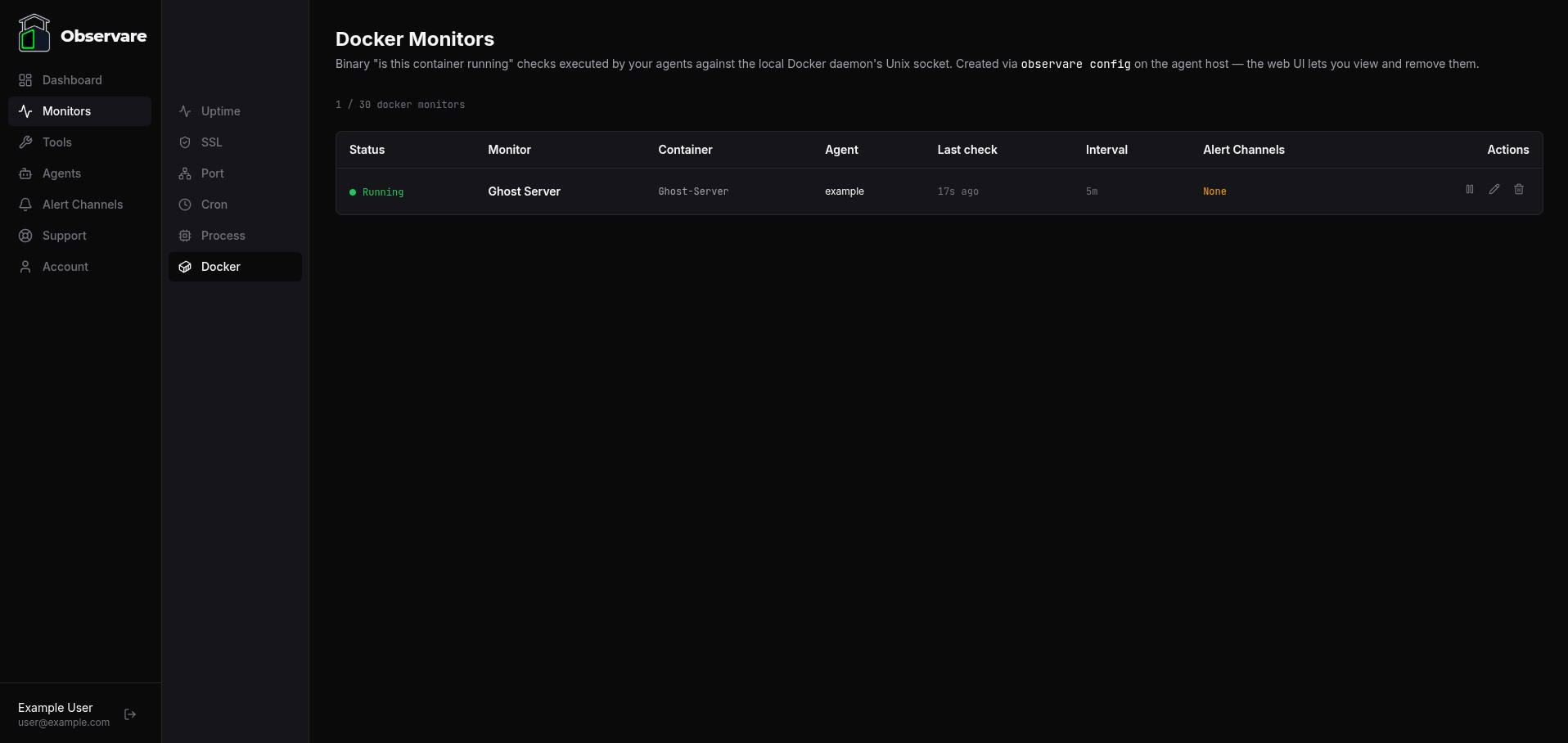
From the web UI. Go to Monitors → Docker. The new row is at the top. Click in for the detail page.
From the agent's log:
journalctl -u observare-agent -fA fresh [config] line reports the new monitor count, and [check] docker <name>: RUNNING (or NOT RUNNING) fires on each check.
Removing a monitor from the CLI
Same observare config menu, option 6 — Remove a monitor. Pick the monitor by number, confirm with y/N. Or the one-shot if you already know the ID:
observare remove <monitor-id>Deletion also works from the web UI — the trash icon on the Docker monitor list page or the detail page.
Troubleshooting
Every check reports docker_unavailable
Almost always a permissions issue — the agent's user isn't in the docker group. Run:
groups $USERIf docker isn't in the list, add it and restart the agent:
sudo usermod -aG docker $USER
sudo systemctl restart observare-agent
Less commonly:
- The Docker daemon isn't running.
sudo systemctl status dockerwill tell you. - The Docker socket lives somewhere other than
/var/run/docker.sock. The agent currently hard-codes that path. If you're using rootless Docker, Podman with a Docker-compatibility shim, or a custom socket path, the agent can't see it today — open a ticket if this is you.
Check reports not_found but docker ps shows the container
Usually a name-matching issue:
- You used the image name or service name, not the container name.
docker ps --format '{{.Names}}'shows what matters. - The container was renamed after you created the monitor. Names are part of the monitor's identity — you'll need to delete the monitor and recreate it with the new name.
- Typo. The match is exact and case-sensitive.
Check reports not_running repeatedly
The container exists but is in a state other than running. The alert message and the detail page's recent checks show the actual state Docker reported:
exited— the container's main process finished. If it's meant to always be running, checkdocker logs <name>for the reason.paused— someone randocker pauseand didn't resume. This is usually intentional during maintenance; pause the monitor too if that's the case.restarting— Docker is in a restart loop. The agent's 30-second local recheck catches brief transitions throughrestarting, so seeingnot_running (restarting)repeatedly means a genuine crash loop.created/removing/dead— less common transitional states; address the underlying Docker issue.
Alert channels list is empty
You haven't set up any alert channels yet — go to Alert Channels in the web UI, add one, then re-run observare config.
What's next
- Docker monitoring — web-UI management for these monitors.
- Process monitoring from the agent — the same CLI flow for adding process monitors.
- Internal uptime & port checks — for HTTP endpoints served by the container, or TCP ports it exposes.