

The Subscription page is where you manage your Observare plan, trial, billing, and usage against your plan's limits. It's a separate top-level item in the sidebar from Account — Account handles who you are, Subscription handles how you pay.
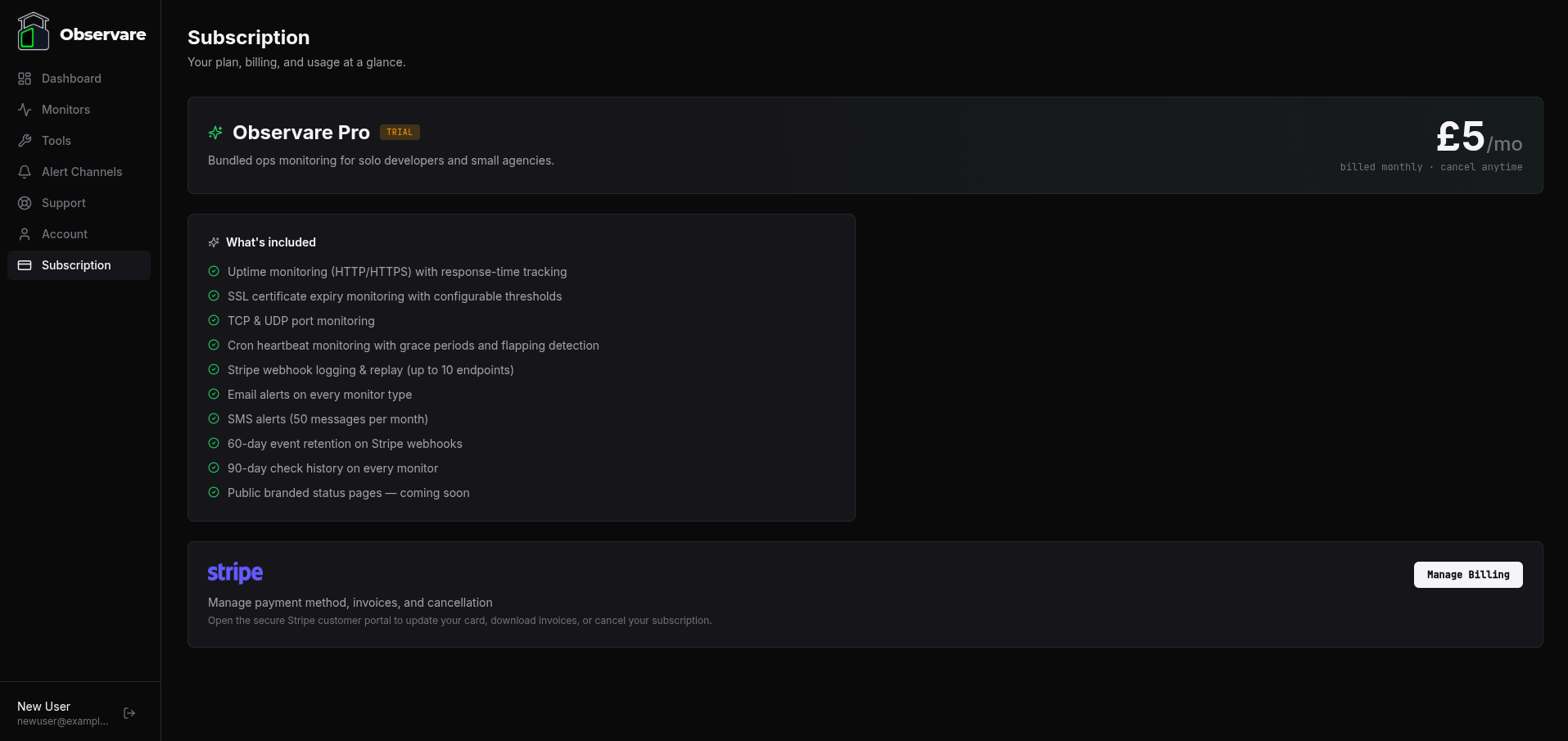
Plan hero
The banner at the top of the page shows the four things that matter most at a glance:
- Plan name — "Observare Pro" with a sparkles icon. There's only one plan, so the name is fixed.
- Status pill — one of Trial (amber), Active (green), Past Due (red), or Cancelled (grey).
- Price — big
£5/moon the right-hand side with the words "billed monthly · cancel anytime" underneath. - Sub-line — varies with status:
- While trialing: "Trial — N days remaining" (counts down live)
- While active: "Next billed on Mon DD YYYY" with a small calendar icon
- While cancelling: "Cancels on Mon DD YYYY" in amber with an alert icon
If your subscription is set to cancel at the end of the current period, a callout appears at the bottom of the hero reminding you of the cancellation date and that you'll keep full access until then.
Trial progress bar
While your 7-day trial is active, a dedicated Trial progress card appears underneath the hero:
- A horizontal progress bar filling from left to right as your trial days tick by
- "Day N of 7 · ends Mon DD" shown on the right
- The bar is amber for most of the trial, but turns red once you have 2 or fewer days left
- Below 2 days remaining, a warning appears: "Card will be charged in N days unless you cancel"
Once the trial ends (i.e. status transitions from trialing → active), the whole card disappears and the hero switches to showing the next billing date.
What's included
The left-hand card under the hero lists everything that comes with the plan. Ten ticks in plain English:
- Uptime monitoring (HTTP/HTTPS) with response-time tracking
- SSL certificate expiry monitoring with configurable thresholds
- TCP & UDP port monitoring
- Cron heartbeat monitoring with grace periods and flapping detection
- Stripe webhook logging & replay (up to 10 endpoints)
- Email alerts on every monitor type
- SMS alerts (50 messages per month)
- 60-day event retention on Stripe webhooks
- 90-day check history on every monitor
- Public branded status pages with light/dark themes and optional password protection
Every item on the list is included in the £5/month plan. There is no Starter, Pro, or Enterprise tier — everyone gets the same thing.
This month's usage
The right-hand card shows four live usage gauges, each with a coloured progress bar and a "current / cap" readout. All values refresh every time you load the page (there's no caching).
Monitors
{current total} / 120 with a breakdown line: {u}u · {s}s · {p}p · {c}c.
The 120 comes from summing the four per-type caps — 30 uptime + 30 SSL + 30 port + 30 cron. In practice nobody hits this unless they've systematically filled out every monitor type. You can run up to 30 of each type independently; hitting the 30-cap on (e.g.) uptime doesn't prevent you adding SSL or port monitors.
SMS this month
{sent} / 50.
Each account gets a hard cap of 50 SMS alerts per calendar month, resetting at the start of each month. Once you hit the cap, further SMS attempts are rejected by the server — they're logged but not sent. The gauge turns amber at 90% utilisation and red when you're over.
Webhook events this month
{received} / 100,000 with a soft-cap indicator.
This is a soft cap — if you exceed it, events are still received, verified, stored, and forwarded. The gauge turns amber to warn you that you're over, with an "Over soft cap — events still received and logged" note underneath. The soft cap exists so we can notice runaway traffic before it becomes a cost problem; it's not an enforcement limit. In practice, most accounts will use a few hundred webhook events a month.
Webhook endpoints
{current} / 10.
Unlike the soft webhook event cap, the 10-endpoint limit is hard. Creating an 11th endpoint is rejected by the server with a clear error. Ten is deliberately generous — realistically one per Stripe mode (live + test) or one per environment (production + staging) is already enough for most businesses.
Manage Billing
At the bottom of the page is a Billing card with the Stripe logo and a single Manage Billing button.
Clicking it creates a fresh Stripe Customer Portal session on the server side and redirects you to Stripe's hosted portal. Everything from that point onwards is handled by Stripe directly. In the portal you can:
- Update your card details
- Download past invoices as PDFs
- See a full history of every charge
- Cancel your subscription
- Reactivate a pending cancellation (if you change your mind before the cancel date)
When you're done, click the "Return to Observare" link in the portal and you'll come back to this page. Any changes you made (card update, cancellation request) are reflected on the next load — Stripe notifies Observare via webhook in the background, so the status pill and renewal date update automatically.
Cancelling your subscription
Cancellation happens inside the Stripe Customer Portal, not from this page directly. Open Manage Billing, choose Cancel subscription, confirm, and you're done.
Stripe's standard behaviour is "cancel at period end" — your subscription stays active until your next renewal date, and at that point it stops. Between clicking cancel and that date, the Subscription page shows a callout with the exact cancellation date so you know how long you have left. You can also reactivate during this window if you change your mind, which turns the cancellation off and resumes normal billing.
When the period ends, Stripe fires customer.subscription.deleted → Observare updates your subscription_status to cancelled and the status pill on this page flips to "Cancelled".
Subscription states you might see
Based on what Stripe returns, your subscription can be in one of these states:
| Status | What it means |
|---|---|
trialing |
You're in the free trial window. Card is on file but no charge has been made yet. |
active |
Trial has ended, card has been charged at least once, subscription is in good standing. |
past_due |
Stripe tried to charge your card and it failed. Stripe will retry automatically over the next few days; if retries keep failing the subscription eventually ends. Update your card via Manage Billing. |
cancelled / canceled |
The subscription has fully ended (either because cancellation period elapsed, or payment retries ran out). You'll need to re-subscribe to regain access. |
What isn't on this page
A few things that live elsewhere, not here:
- Plan upgrade / downgrade — there's only one plan (£5/month), so there's nothing to upgrade to.
- Billing address / VAT number — edited in the Stripe Customer Portal, not on this page.
- Payment method — edited in the Stripe Customer Portal.
- Past invoices — downloaded from the Stripe Customer Portal.
- Profile, password, 2FA — those live on the Account page.
What's next
- Account — your identity, password, 2FA, and account deletion.
- Setting up alert channels — use your 50 SMS allowance wisely.